

What is Kling AI Motion Control (and why videos suddenly look real)?
Short version, it takes the motion from one video and paints it onto a single reference image. So your chosen person now does the exact same dance, head turn, or camera move as the source clip. No green screen. No mocap suit. That is why those celebrity dance edits look human-level and kind of freaky.
With v2.6, the model got way better at body orientation, face consistency, and hand fidelity. It also got smoother motion interpolation, so quick moves look natural instead of rubbery. It handles complex motions like full dance routines, martial arts beats, and even finger poses without the spaghetti hands that used to ruin shots. Typical outputs are 5 to 10 second clips that render in minutes.
Where to run it, I use Fal most days because it's pay as you go and simple. You can also use Kling's own app for the newest features, or third party wrappers like Media.io if you want hand-holding. On Fal, Kling Motion Control is here: fal.ai/models/fal-ai/kling-video/v2.6/standard/motion-control. Kling's official Motion Control interface is here: app.klingai.com/global/video-motion-control/new.
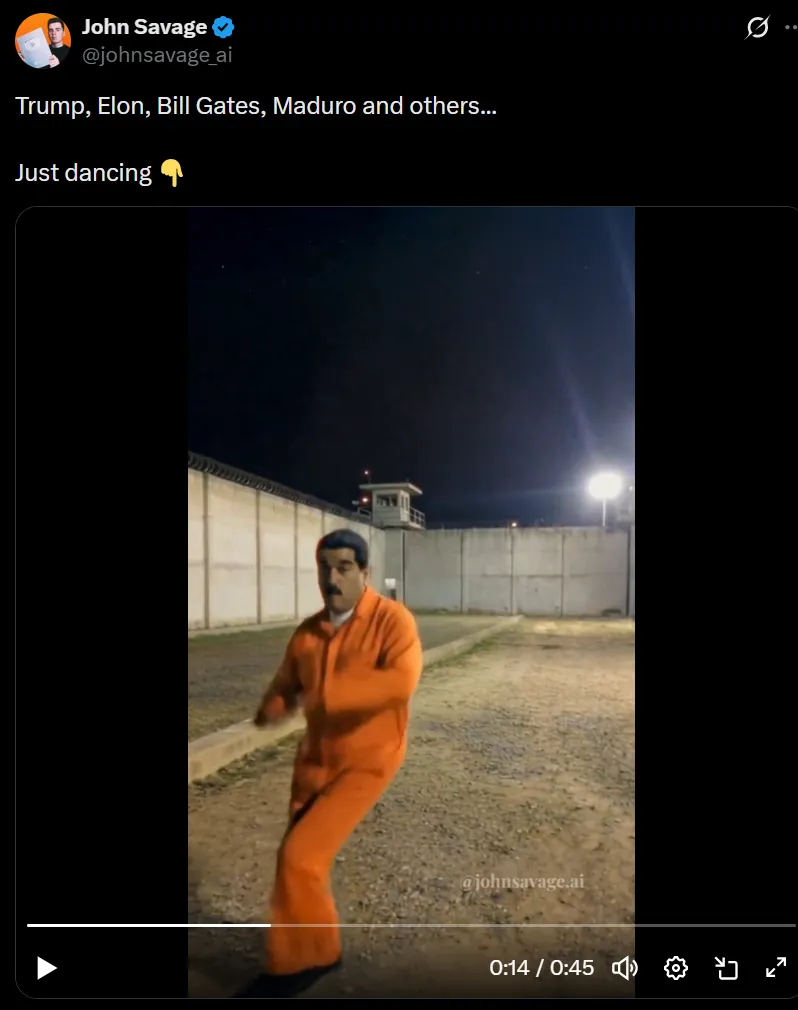
- Kling Motion Control maps a video's motion onto a single image for a new, realistic clip.
- v2.6 improved face orientation, hand detail, and motion smoothness.
- Run it on Fal for pay-as-you-go, or use Kling's app for the latest controls.
How Kling Motion Control works in plain English
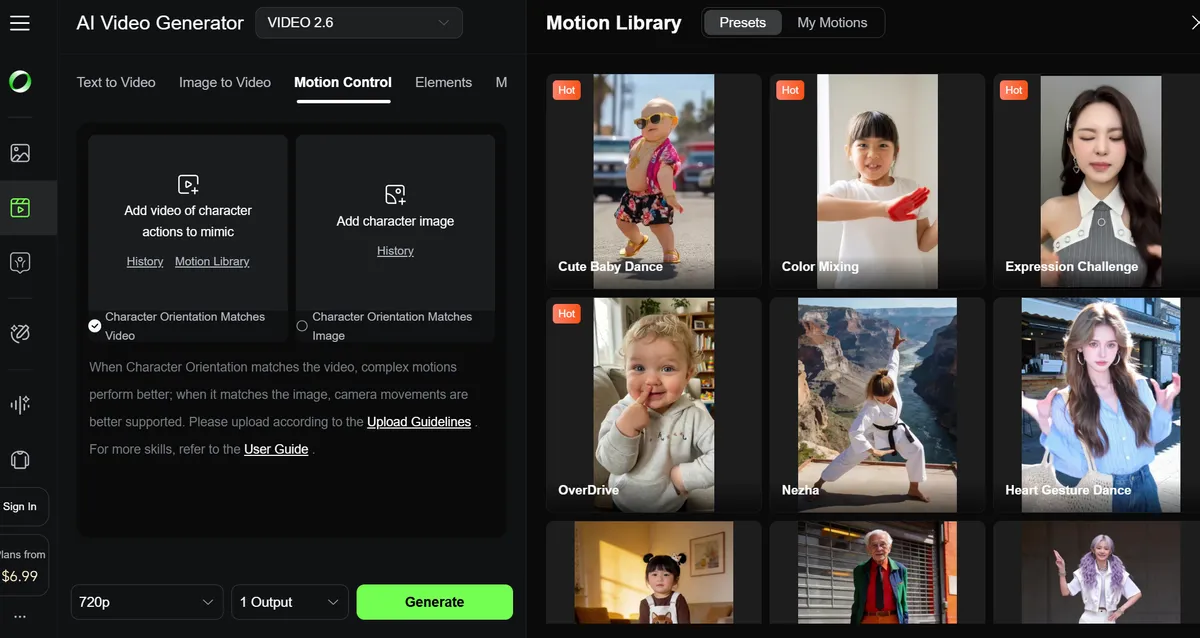
You need two things. A motion video and a reference image. The motion video is where the moves come from. The image is the person you want to perform those moves. Kling fuses the two into a new clip that keeps your person's identity while borrowing the movement and camera feel from the source video.
- Inputs: one reference image (the person), one source video (the moves), optional audio from the video.
- Output: a remixed clip where your person performs the same motion, often with a similar background.
- Runtime: plan 5 to 10 minutes per render, depending on queue and length.
- Cost on Fal: about $0.07 per second. A 10 second clip is roughly $0.70.
There are limits. Extreme occlusions, like arms blocking faces, can confuse the model. Very fast hand waves can still smear. Wild camera whip pans may produce wobbles. Expect a few tries to dial in identity strength and orientation mode.
"The first time I ran a 7 second dance clip, I was half thrilled, half unnerved. The face held up across a quick spin and the hands didn't glitch. That used to be the breaking point."- Me, after too much testing at 1 a.m.
Step-by-step: Create viral TikTok AI videos with Kling on Fal
This is my exact workflow. It's fast, repeatable, and cheap enough to test dozens of ideas.
- Pick a strong motion video - Go short, 5 to 10 seconds. Clean motion, high contrast, and good lighting. If the original audio slaps, keep it. Dance, walks, spins, simple camera moves all work great.
- Prep your reference image - Good lighting, neutral face, eyes visible. If you want to tweak the background or outfit first, do a quick edit in your favorite tool. Make sure limbs are visible with some negative space around the subject so the model doesn't invent extra fingers or merge arms.
- Open Fal's Kling v2.6 Motion Control - Upload your motion video. Upload your reference image. Set the duration and output size. Toggle the option to keep the original audio if you want.
- Dial early settings - Pick an orientation mode, more on this below. Balance motion strength and identity strength. I start with medium motion and high identity for face-heavy clips, then loosen motion for dance clips.
- Render and review - It usually takes a few minutes. Watch the hands and face first. If the likeness drifts, push identity up or swap to a clearer reference image. If motion looks stiff, drop identity a notch or choose a full-body orientation mode.
- Export, post, iterate - Save the final, trim in your editor, add captions, post. Then do three more variations with different seeds so you have a batch to schedule.
Dial in the settings: prompts, orientation modes, and background control
A few toggles make a huge difference. Here's how I approach them so I don't burn credits.
Orientation modes: face, full-body, or camera-aware
Use face-focused when you care most about identity. A talking head, a close-up walk, or a meme shot where the face must read. Use full-body for dance and fight moves, where legs and arms need to track the beat. Camera-aware helps when the source video has big pans or zooms and you want Kling to respect that motion path.
Motion strength vs identity strength
Crank identity strength when likeness matters. Interviews, reaction bits, anything face-forward. Lower identity strength when you need looser, flowy motion. For dance, I often do two passes. First pass with higher motion strength to capture the beat. Second pass with identity up a bit to lock the face, using the first pass as a guide for what to fix.
Background handling
Kling often keeps the rough background vibe of the source video, but it can also reinterpret. If you want to stabilize the background, use a cleaner source clip with minimal depth changes and reduce motion strength a touch. If you want a new scene, add a short style prompt like "neon club lighting" or "sunset rooftop" and nudge it away from the original.
Prompting and seeds
Prompts work best as light style nudges. Think "hoodie, soft studio light" or "formal suit, warm tones." Keep it short. Reuse the same seed number across multiple clips to get consistent wardrobe and lighting over a series. That matters if you are building a repeatable format or a character.
Reference image quality
Use a well lit, neutral face. Show visible limbs and leave negative space around the subject so the model doesn't hallucinate extra fingers when the pose changes. Avoid obstructions like hands covering the mouth or hair over eyes. Clean input in, clean output out.
Pricing, speed, and platforms: Fal vs Kling vs Media.io
I've run Kling Motion Control in a few places. Here's the no-drama breakdown on cost, speed, control, and when to choose which.
| Feature | Fal | Kling App | Media.io |
|---|---|---|---|
| Pricing | ~$0.07 per second, pay as you go | Subscription plans, higher monthly cost | Often bundles or credits, pricing varies |
| Speed | Fast for short clips, 5-10 min typical | Fast, priority on higher tiers | Varies by queue and plan |
| Controls | Orientation, identity, motion, audio | Latest features first, more fine control | Fewer expert settings |
| Output Quality | High, consistent for 5-10s clips | Highest, newest models | Good, can be inconsistent |
| Best For | Creators, small batch tests | Pros, agencies, scale runs | Casual users, quick trials |
| Access | Fal Kling v2.6 Motion Control | Kling Motion Control | Third party wrapper |
✅ Pros
- Human-level motion transfer that tracks faces, hands, and camera moves
- Short, cheap tests on Fal make iteration easy
- Orientation modes and identity controls give you real control
❌ Cons
- Fast hands and occlusions still cause occasional artifacts
- Backgrounds can wobble on wild camera motion
- Kling app plans can be pricey if you just dabble
Ethics, legality, and platform rules (read this before posting)
Viral is fun. Lawsuits aren't. A few guardrails will save you stress later.
- Get consent before using a real person's likeness. Don't impersonate to deceive or harm, even if it's a public figure.
- Respect copyright on source videos. If you didn't shoot it, make sure you have rights to remix it.
- Disclose AI content where required. Check TikTok and YouTube rules on realistic synthetic media.
- Avoid NSFW and any content with minors. Platforms take this very seriously.
- Skip mod or premium APKs. Besides being risky for malware, they can violate terms and get your accounts banned.
- Use clear, well lit inputs and short motion clips to reduce artifacts.
- Pick orientation mode based on your shot: face, full-body, or camera-aware.
- Batch clips with the same seed for consistent styling across a series.
How I set up a fast, repeatable workflow
If you plan to post daily, treat this like a tiny factory. I run a simple loop so I can ship 3 to 5 clips per session without burning time.
- Build a motion library - Save 20 to 30 short dance or movement clips. Keep them clean and 5 to 8 seconds long.
- Make a reference pack - 5 to 10 well lit images of your character, different angles. Label them by lighting and outfit.
- Standardize settings - Decide your default orientation, identity strength, seed, and prompt style.
- Render in batches - Queue 3 variations per idea. Keep the best, dump the rest.
- Template your edits - Prebuilt caption styles and a sound bank so you can post fast.